


Teks penuh artikel ini dalam bahasa Inggeris.
A cloud server can be ready in minutes, but a usable business environment takes more than selecting a plan and clicking Deploy. This cloud server setup guide focuses on the decisions that prevent avoidable downtime, surprise costs, weak security, and difficult handoffs later. Whether you are launching an application, hosting a client project, or moving a business workload from another provider, the goal is simple: build an environment your team can operate confidently.
Start With the Workload, Not the Server Size
The right server starts with what it needs to do. A small business website, internal dashboard, development environment, database, and file-processing application all place different demands on CPU, memory, storage, and network capacity.
For a standard business website with moderate traffic, a modest virtual machine may be sufficient. An application with background jobs, ecommerce traffic, or a database on the same server will usually need more memory and faster storage. Development and staging servers can often be smaller, but they still need enough resources to reflect production behavior when your team tests changes.
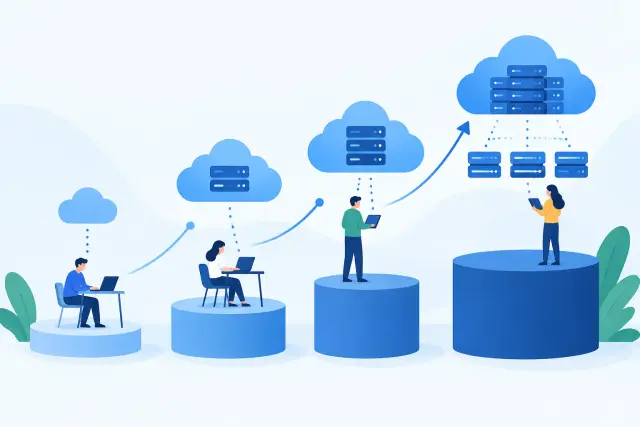
Avoid choosing a plan based only on the lowest monthly price. An undersized server can become expensive when slow response times affect sales, support requests, or staff productivity. At the same time, paying for capacity you do not use makes operating costs harder to control. Start with a realistic estimate, monitor usage, and leave room to scale when demand changes.
Before deployment, write down four basics: the application or service you will run, expected traffic or usage, required operating system, and who will be responsible for maintenance. That short planning step clarifies whether you need a self-managed cloud server, a managed website service, or a combination of both.
Choose a Region and Operating System Carefully
Select a server location close to the people or systems using it. For a US-based business serving US customers, a US region generally provides better response times than a distant location. If the server must connect frequently to another cloud service, database, or office network, placement matters there too.
Next, choose an operating system your team can support. Linux distributions are common for web applications because they are efficient, flexible, and well supported by server software. Ubuntu and Debian are familiar options for many administrators. If your application requires Windows-specific software, Microsoft SQL Server tooling, or a Windows desktop environment, a Windows server may be the practical choice, though licensing and resource requirements can be higher.
Use a current long-term support release when possible. Older operating systems may have compatibility advantages, but they also approach end-of-support dates sooner. A server that cannot receive security updates becomes a business risk, not just a technical inconvenience.
Create Secure Access Before Installing Anything
A new server is exposed to the internet as soon as it receives a public IP address. Secure administrative access first, then install the application.
For Linux servers, use SSH key authentication rather than relying only on passwords. Keep the private key in a protected password manager or approved secure location, and ensure at least one other authorized administrator can access it if the primary owner is unavailable. For Windows servers, use a strong administrator password, limit Remote Desktop access, and change default credentials immediately.
Create a separate non-root user for routine administration. Grant elevated privileges only when needed. Direct root access is convenient during setup, but it makes accountability and recovery more difficult as more people begin managing the server.
Your firewall should allow only the ports required for the workload. A typical web server may need port 80 for HTTP and 443 for HTTPS, while SSH or Remote Desktop should be restricted to known office or administrator IP addresses whenever possible. Do not leave database ports open to the public internet unless there is a documented reason and additional access controls are in place.
Apply Updates and Set a Baseline Configuration
Run operating system updates before you deploy your website, application, or database. This closes known vulnerabilities and ensures package dependencies are current. Then configure automatic security updates where they fit your operational process.
Automatic updates are useful, but they are not a substitute for maintenance. Some updates require a restart, and some application stacks need testing before major package changes. For customer-facing workloads, use a staging environment or scheduled maintenance window for significant upgrades.
At this stage, set the server timezone, configure network time synchronization, and verify hostname settings. These details affect logs, scheduled tasks, monitoring alerts, certificates, and troubleshooting. A server with incorrect time can cause authentication failures that look far more complicated than they are.
Install only the components you need. Every unnecessary service increases the maintenance burden and potential attack surface. If the server will run a web application, install the web server, runtime, and database client or service required by that application. If it is dedicated to a database, keep web-facing software off the machine.
Connect Domains, DNS, and HTTPS Correctly
Most business workloads need a domain name rather than a raw IP address. Create the appropriate DNS record, usually an A record for IPv4 or an AAAA record for IPv6, and point it to the server's public address. If you use a subdomain such as app.example.com or portal.example.com, create the record specifically for that hostname.
DNS changes may take time to propagate depending on record settings and cached responses. Plan for that delay during migrations and launches. Do not cancel an old hosting service until the new server has been tested with the live domain and verified by users.
Install an SSL/TLS certificate before accepting customer logins, form submissions, or payments. HTTPS protects information in transit and supports browser trust. Configure automatic certificate renewal, then test it. A certificate that renews successfully in theory but fails because of a DNS or firewall change can still cause an outage months after launch.
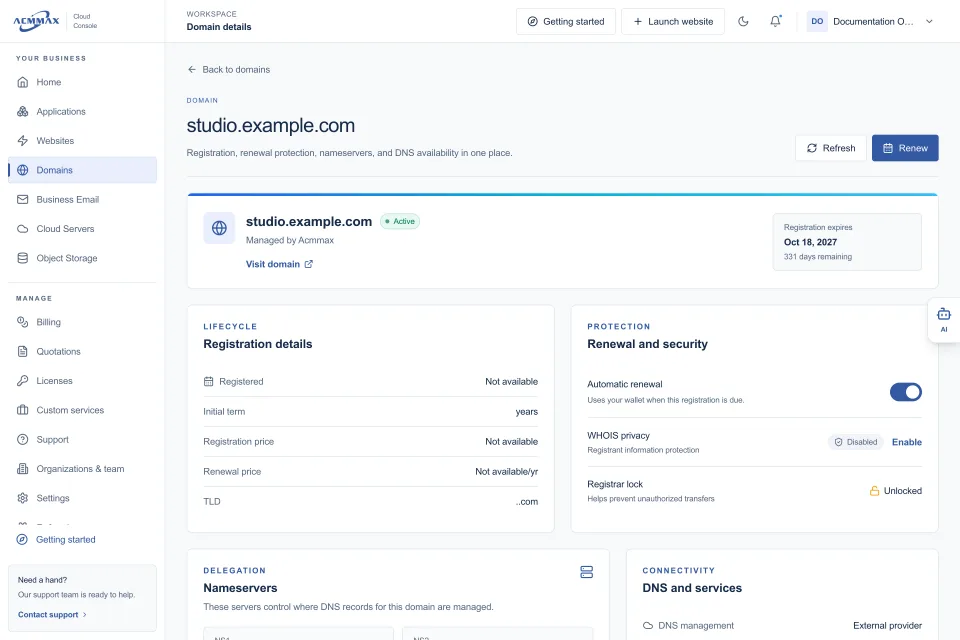
If you manage domains, servers, business email, and storage through separate vendors, document which account controls each service. A central console such as ACMMAX can reduce this administrative sprawl by keeping routine service management, billing, and access management in one place.
Build Backups Before You Need Them
A snapshot is useful, but it is not always a complete backup strategy. Snapshots can help you recover a server after a failed update or configuration change, yet they may be stored in the same provider environment and may not meet your retention requirements.
A practical approach includes scheduled server backups, separate backups for databases, and off-server storage for critical files. The frequency depends on how much data your business can afford to lose. A marketing site may tolerate daily backups. An ecommerce store or active client portal may require more frequent database backups.
Retention matters as much as backup frequency. If corruption or malware goes unnoticed for several days, a backup from yesterday may contain the same problem. Keep multiple recovery points and define how long they should remain available.
Most importantly, test a restore. Restore a backup to a separate environment, confirm the application starts, and verify that essential records and files are present. A backup you have never restored is an assumption, not a recovery plan.
Add Monitoring, Logs, and Cost Controls
Once the server is live, monitoring tells you whether it is working before customers tell you it is not. Track CPU usage, memory pressure, disk capacity, network activity, uptime, and service availability. Set alerts that are meaningful. An alert at 95% disk usage gives you time to act; an alert after the disk is full arrives too late.
Centralize or retain logs long enough to investigate incidents. Web server logs, application logs, system logs, and authentication logs answer different questions. When a site slows down or a user cannot log in, timestamps and error details are usually more useful than guesswork.
Set a monthly budget and review charges after the first billing cycle. Costs can rise from larger server plans, additional IP addresses, backup retention, data transfer, or storage. Clear pricing helps, but the business still needs an owner who checks what is running and why. Delete test servers and unused snapshots when projects end.
Use a Simple Operating Routine
Cloud server setup is not a one-time project. Assign ownership for updates, backups, alerts, renewals, and access reviews. For a small team, that may be one internal administrator and one backup contact. For an agency, it may be a documented process for each client environment.
Review user access when staff, contractors, or client contacts change. Remove credentials that are no longer needed, rotate sensitive keys when appropriate, and keep a record of the server purpose, IP address, operating system, DNS records, and recovery steps.
A well-configured cloud server gives your business flexibility without forcing you into a complicated operating model. Start with a clear workload, secure the basics, test recovery, and keep maintenance visible. That is how a quick deployment becomes dependable infrastructure.