Beginner Guide to Cloud Virtual Machines
This beginner guide to cloud virtual machines explains setup, sizing, security, costs, and the first workloads to deploy with confidence today.
ACMMAX Insights ·
A website that loads slowly, an app that cannot handle a promotion, or a client project that needs a dedicated environment can all lead to the same decision: you need more control than basic shared hosting provides. This beginner guide to cloud virtual machines explains what that next step looks like, without turning a practical business decision into a complicated infrastructure project.
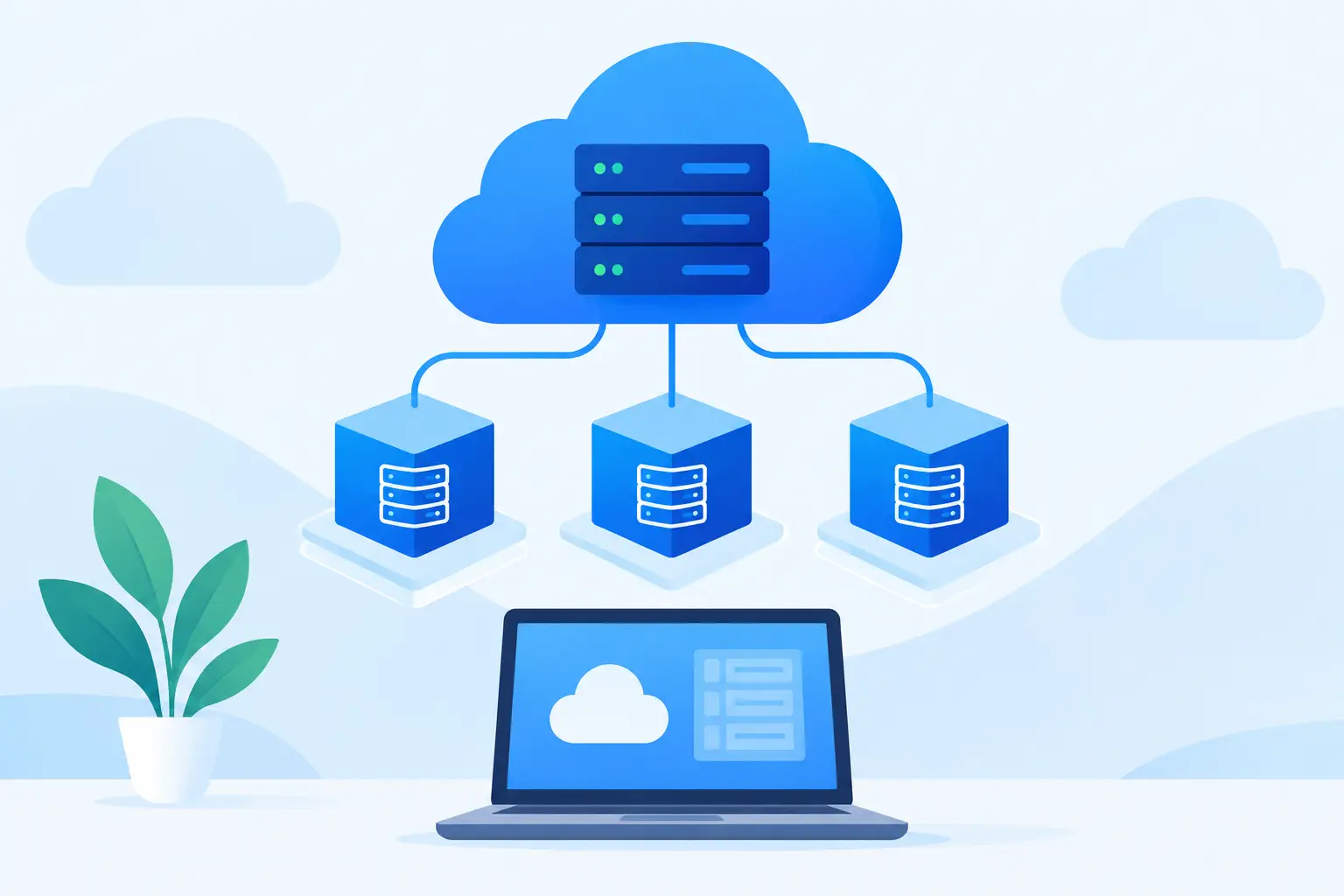
A cloud virtual machine, often called a cloud VM or VPS, gives you a private slice of computing power that you can configure for your own workload. You choose the operating system, install the software you need, control access, and scale resources when demand changes. For entrepreneurs, agencies, developers, and growing online businesses, that flexibility can remove a major bottleneck.
What Is a Cloud Virtual Machine?
A cloud virtual machine is a software-defined server running on physical cloud infrastructure. The physical server is divided into isolated virtual environments, each with its own allocated CPU, RAM, storage, operating system, network connection, and administrator access.
Think of shared hosting as renting one room in a busy building where the property manager controls most of the utilities. A cloud VM is closer to renting your own office suite. The building infrastructure is still managed for you, but you decide how to arrange and operate the space.
That distinction matters. With a VM, you can run a custom web application, configure a web server, host multiple small sites, deploy a database, create a testing environment, run a bot, or install business software that would not work on standard hosting.
A VM is not automatically the right choice for every website. If you only need a simple WordPress site and do not want to manage updates, security settings, or server software, managed WordPress hosting can be the faster option. A cloud VM becomes valuable when control, customization, and dedicated resources matter more.
Cloud VM vs. Shared Hosting vs. Managed Hosting
The best option depends on how much control you need and how much server administration you are prepared to handle.
| Option | Best for | Your level of control | Main trade-off |
|---|---|---|---|
| Shared hosting | Simple starter websites | Low | Limited resources and configuration |
| Managed hosting | WordPress and hands-off site management | Medium | Less freedom to install custom software |
| Cloud virtual machine | Apps, custom stacks, agencies, and flexible workloads | High | You are responsible for server setup and maintenance |
A cloud VM does not mean you must be a full-time system administrator. Modern providers make deployment much faster through prebuilt operating system images, instant activation, and one-click application options. Still, the machine is yours to operate. That means routine tasks such as patching, backups, firewall rules, and user access should be part of your plan from day one.
The Resources That Determine VM Performance
When you select a cloud VM plan, you will usually see a few core specifications. These are not just technical labels. They determine what your server can reliably do.
CPU
CPU cores handle processing work. More CPU helps when your application receives concurrent traffic, performs calculations, processes media, runs scheduled jobs, or serves dynamic pages. A small business website with modest traffic may run well on one or two virtual CPU cores. An agency hosting several active client applications may need more.
RAM
RAM is the short-term working memory available to your operating system and applications. It is often the first resource that limits a new VM. Databases, WordPress plugins, caching services, Java applications, and containers all consume memory.
If a server runs out of RAM, performance can fall sharply or processes may stop. For a lightweight Linux web server, 1 GB may be enough to begin. For a production application with a database, 2 GB to 4 GB is usually a more practical starting range. Monitor actual usage before paying for far more capacity than you need.
Storage
Storage holds your operating system, website files, databases, logs, and backups. Fast SSD or NVMe storage improves database response times and overall application performance. Estimate storage based on what will grow, not just what you need during setup.
For example, a small website may only use a few gigabytes initially, but image uploads, email attachments, logs, and database records can grow over time. Large media libraries and backup archives are often better stored in object storage rather than filling the VM disk.
Bandwidth and Network Speed
Bandwidth measures how much data your server can transfer. A brochure website usually uses little bandwidth. Video delivery, file downloads, API-heavy products, game servers, and high-traffic stores can use much more. Check whether a plan includes a monthly transfer allowance and what happens if you exceed it.
How to Choose Your First Cloud VM
Start with the workload, not the biggest available plan. Buying excess capacity before your business needs it wastes budget. Starting too small without monitoring can create avoidable performance problems.
For a first deployment, map your answer to three questions: What software will run on the server? How many people or visitors do you expect at the same time? What would downtime cost your business?
A practical starter configuration for a small web app, staging environment, or low-traffic business site is typically one to two CPU cores, 2 GB of RAM, and SSD storage sized for your files, database, and room to grow. If you are running multiple sites, a database, or an application framework, moving to 4 GB of RAM early may reduce friction.
Choose a Linux distribution unless you specifically need Windows-only software. Ubuntu is popular with beginners because it has extensive documentation and broad software support. Debian is known for stability, while AlmaLinux and similar distributions are common in traditional hosting environments. The best choice is often the one your application documentation supports.
Beginner Guide to Cloud Virtual Machines: Your First Setup
Provisioning a VM takes minutes. Making it production-ready takes a little more discipline. Follow this sequence before sending live traffic to the server.
1. Create the VM and record access details
Select your region, operating system, and plan. Choose a server location close to most of your users when possible, since distance can affect response time. Save the server IP address and initial credentials in a secure password manager, not in a chat message or unprotected document.
2. Update the operating system
New server images can require security updates immediately. Log in through SSH for Linux or Remote Desktop for Windows, then install available updates before adding your application. This reduces exposure to vulnerabilities that may already be publicly known.
3. Create a non-root user
The root user has unrestricted control. Create a separate administrator account for normal management, grant it only the permissions required, and use strong authentication. For Linux servers, SSH keys are generally safer and more convenient than password-only logins.
4. Configure a firewall
A firewall limits which services can be reached from the public internet. Most web servers only need ports 80 and 443 open for website traffic, plus controlled administrative access such as SSH on port 22. Do not leave databases, control panels, or development tools publicly exposed unless there is a clear business reason and proper security controls.
5. Install only what you need
A typical web stack includes a web server such as Nginx or Apache, a database such as MySQL or PostgreSQL, and the runtime your application needs. Keep the environment focused. Every unnecessary service is another process to update, monitor, and secure.
6. Connect your domain and enable HTTPS
Once the application is working, point the domain's DNS records to the VM's IP address. Then install an SSL certificate so visitors connect over HTTPS. This is essential for customer trust, search visibility, login pages, checkout flows, and modern browser compatibility.
Security and Backups Are Operating Requirements
A VM gives you control, but control comes with responsibility. The biggest beginner mistake is treating a deployed server as finished. It needs regular updates, backups, and visibility.
Use automatic security updates where appropriate, review user accounts, and remove access when a contractor or employee no longer needs it. Monitor CPU, RAM, disk space, and uptime so you can respond before customers notice a problem. Logs are useful when troubleshooting, but they can also consume disk space quickly if never rotated.
Backups should be separate from the VM itself. If a server is deleted, corrupted, or compromised, a backup stored on that same server may not help. Keep regular copies of databases and critical files in a separate backup destination, and test restoration at least once. A backup is only useful when you know it can be restored.
For businesses centralizing operations, a platform such as ACMMAX can simplify this workflow by keeping cloud compute, domains, business email, and object storage under one account. That reduces the time spent jumping between vendor dashboards when you are launching or maintaining a project.
Understand the Real Cost Before You Deploy
Cloud VM pricing is usually based on the resources you reserve and how long the server runs. Entry-level plans can be affordable, but your full operating cost may also include backup storage, snapshots, bandwidth overages, software licenses, managed support, and your own time.
Pay-as-you-go pricing is useful for testing a new application, running short-term campaigns, or scaling an environment as demand becomes clearer. A fixed monthly plan can be easier to forecast for a stable production workload. Neither model is always better. Match the billing structure to how predictable your usage is.
Avoid choosing only by the lowest advertised price. Check the included CPU, RAM, storage type, transfer limits, data center location, support expectations, and upgrade path. A cheap server that cannot grow with your business can become an expensive migration later.
Your first cloud VM does not need to be perfect. Start with a sensible size, secure it before launch, document your setup, and monitor what the workload actually uses. Once you have a clean, repeatable foundation, deploying the next client site, application, or business tool becomes far less intimidating.