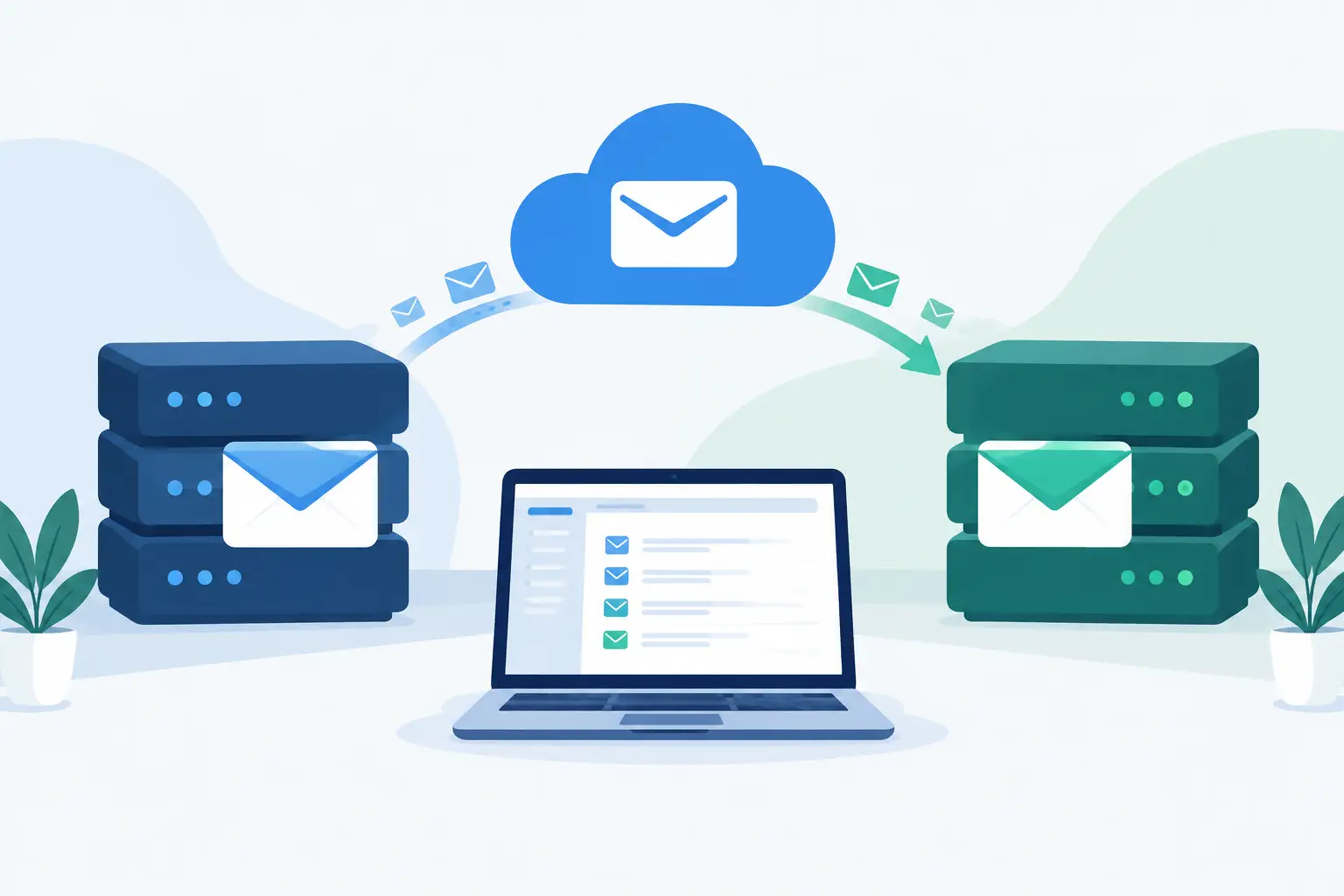
How to Migrate a WordPress Site Safely Without Downtime
Learn how to migrate a WordPress site safely with a tested backup, DNS, database, and validation process that protects traffic, orders, and rankings too.
ACMMAX Insights ·
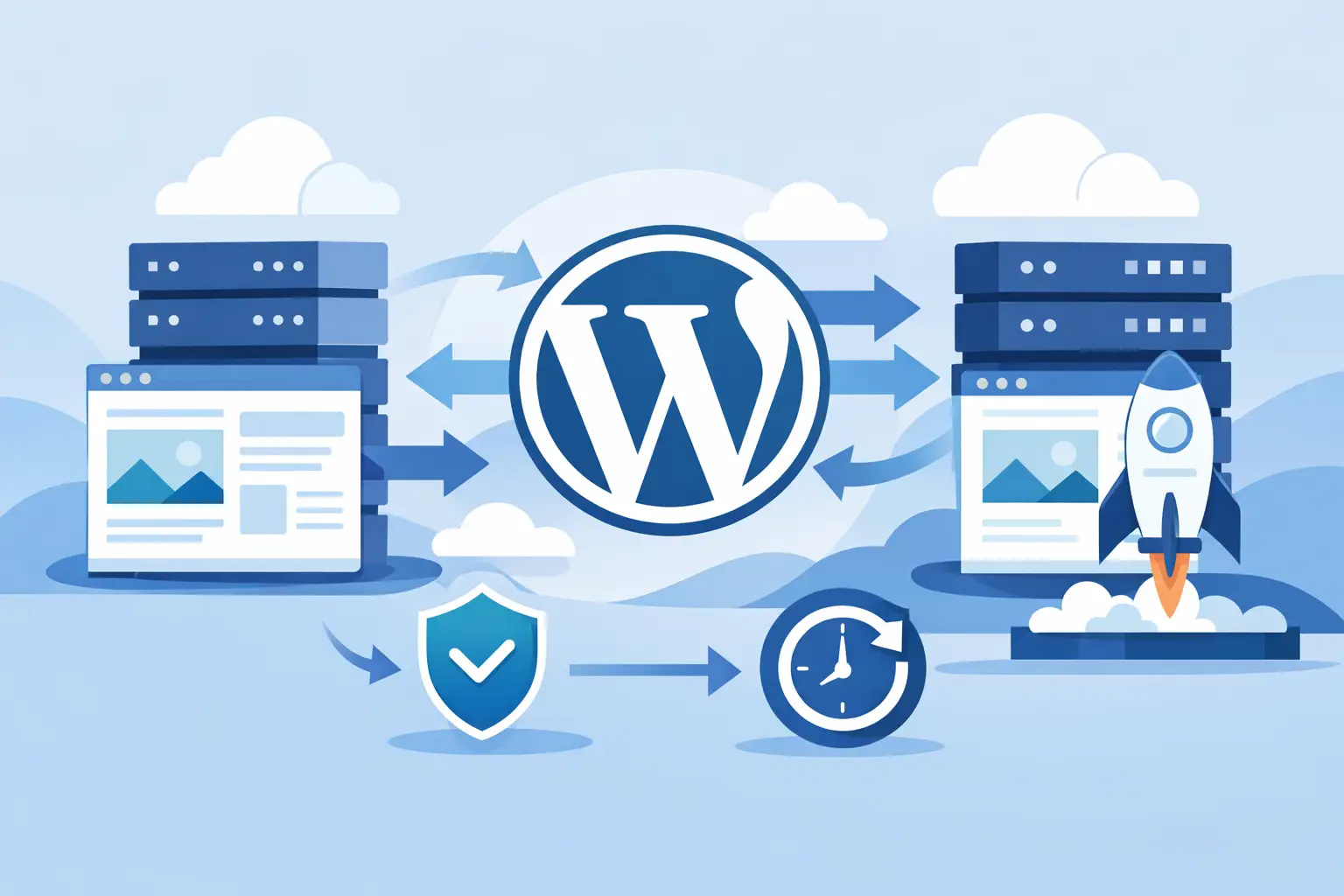
A WordPress migration can look finished while quietly breaking the parts of your business that matter most: contact forms, checkout emails, scheduled jobs, image paths, or search visibility. To migrate a WordPress site safely, treat it as a controlled deployment, not a copy-and-paste task. Your goal is simple: build and test the new environment before visitors are sent there.
For a brochure site, the process may take an hour. For an online store, membership site, booking platform, or agency site with active client traffic, the order of operations matters far more. A missed database change during the final switch can mean lost orders, registrations, or leads.
Start With a Migration Plan, Not a Hosting Login
Before moving files, identify what the website actually depends on. WordPress itself is only one layer. The live site may also rely on a database, DNS records, SSL certificates, transactional email, caching, a CDN, third-party APIs, and scheduled tasks.
Write down the current domain registrar, DNS provider, hosting account, PHP version, WordPress version, active theme, plugins, and email delivery setup. If the domain email runs through a separate provider, preserve its MX, SPF, DKIM, and DMARC records when DNS changes are made. A website migration should not accidentally stop your team from receiving email.
For stores and other transaction-heavy sites, choose a low-activity migration window. Pause promotional campaigns, scheduled launches, and bulk email sends until the move has been verified. If your business cannot tolerate even a short maintenance window, plan a final database sync immediately before the DNS cutover.
Reduce DNS TTL Before the Switch
DNS is the directory that tells browsers where your domain lives. Lowering the TTL 24 to 48 hours before the migration gives record changes a better chance of spreading quickly. A TTL of 300 seconds is commonly used during a planned switch, then raised again once the new site is stable.
This does not eliminate propagation entirely. Some networks and devices cache records longer than expected. It does reduce the period in which visitors may reach the old server while others reach the new one.
Build a Recovery-Ready Backup
A backup is only useful if it can restore the exact working site. Create a full backup before making changes, including WordPress files, the database, media uploads, configuration files, and any custom code outside the standard WordPress directories.
Store that backup away from the source server. Keeping the only copy on the same hosting account is not a recovery plan. Use secure object storage, a local encrypted copy, or another independent location. Keep the original site online and untouched until the new environment has passed testing.
Your backup should include these assets:
- The complete WordPress file system, especially `wp-content/uploads`, custom themes, plugins, and `.htaccess`
- A current database export containing posts, users, orders, settings, and form submissions
- `wp-config.php` values, including database details, table prefix, salts, and custom constants
- Server-level settings such as redirects, cron jobs, PHP extensions, and email routing notes
If you use a migration plugin, download its backup package as well. Migration tools can save time, but they do not replace an independent copy you control.
Prepare the New WordPress Environment
Create the destination site before changing DNS. Match the PHP version where possible, then confirm the server supports the extensions your site needs. Moving directly from an older PHP release to a newer one can improve security and performance, but it may also expose theme or plugin compatibility issues. Handle that upgrade as a separate test whenever possible.
Set up a fresh database and import a copy of the existing database. Upload the WordPress files, update the database name, user, password, and host in wp-config.php, and make sure file permissions allow WordPress to write to uploads, cache, and update directories.
Managed WordPress hosting reduces much of this server setup by providing a preconfigured WordPress environment, SSL support, backups, and staging controls. On a centralized platform such as ACMMAX, keeping hosting, domains, storage, and business operations under one account can also reduce the number of dashboards involved during a migration.
Do not point the public domain to the new server yet. Test through a temporary URL, preview domain, or a local hosts-file override. The hosts-file method lets your own computer load the new server using the real domain while everyone else continues seeing the current live site.
Test the New Site Before DNS Goes Live
A homepage that loads is not a completed migration. WordPress sites often fail in less visible places, particularly after a database import or domain change.
Start with the core user journey. Open key pages, navigation menus, category archives, search results, and mobile layouts. Log in as an administrator and as a regular user if accounts are enabled. Upload an image, publish a test draft, and confirm the media library loads correctly.
Then test the business functions that produce revenue or leads. Submit each form and verify delivery at the destination inbox. Add a product to the cart, complete a test checkout if your payment processor allows it, and confirm the order reaches both WordPress and the customer email flow. Test booking calendars, membership access, password resets, chat widgets, analytics, and any integrations connected to webhooks or APIs.
Use browser developer tools or an SSL checker to look for mixed-content warnings. If pages still request images, scripts, or stylesheets from the old domain or an old HTTP address, run a safe search-and-replace process that understands serialized WordPress data. Avoid editing raw database values blindly. A simple text replacement can corrupt plugin settings and page-builder data.
Watch for These Common Migration Failures
The most common issue is an incomplete database or an incorrect wp-config.php connection. The next is stale caching. Clear WordPress cache plugins, server cache, CDN cache, and browser cache before deciding a change did not work.
Another frequent problem is missing rewrite rules, which causes internal pages to return 404 errors. In WordPress, resaving the permalink structure often rebuilds those rules. If that does not work, compare the new server's rewrite configuration with the old one.
Email deserves special attention. A contact form can show a success message even when the email never arrives. Use authenticated SMTP or a transactional email service, then test actual delivery, not just form submission.
Make the Final Cutover Carefully
Once the destination site is tested, put the old site into a brief maintenance mode if it accepts orders, comments, form entries, or registrations. Export one final database copy from the old server and import it to the new environment. This final sync captures changes made after your first migration copy.
For a busy WooCommerce store, consider a migration method designed to synchronize orders and customers or schedule a short checkout pause. The trade-off is clear: a longer testing period is safer, but more time between the first copy and DNS change creates more data that must be reconciled.
Update the domain's A record or nameservers according to your hosting setup. Preserve all non-web DNS records unless you intentionally plan to replace them. This includes email records, verification records, subdomains, and services such as payment-provider validation.
Enable SSL on the destination and confirm that both the non-www and www versions redirect to your preferred canonical domain. If the old host remains available during propagation, avoid making content edits in both places. Choose one source of truth immediately after cutover.
Validate Traffic, Search, and Operations After the Move
For the first 24 to 72 hours, monitor the site actively. Check uptime, server error logs, WordPress debug logs, analytics traffic, form submissions, orders, and support requests. Test from a mobile connection as well as your usual office network, since DNS caches can differ.
Review redirects from old URLs, especially if the move included a domain change or a revised permalink structure. Important pages should return a 200 status code, while retired or moved URLs should use appropriate permanent redirects. Keep the same URL structure when possible. It is the lowest-risk path for search rankings, backlinks, bookmarked pages, and paid campaign destinations.
Do not cancel the old hosting account the same day. Keep it available for at least several days, and longer for complex sites, until you have confirmed that DNS, email, transactions, backups, and traffic reporting are stable. Before closing it, take one more backup of the successful destination site.
A safe migration is not about moving WordPress quickly at any cost. It is about protecting the business behind it. When every dependency is documented, the new site is tested before DNS changes, and the old environment remains available as a fallback, you can move infrastructure with confidence instead of hoping visitors never notice.