


A hacked website is not only a technical problem. It can interrupt leads, sales, customer trust, email delivery, and search visibility at the same time. The safest way to restore a hacked WordPress website is to contain the incident first, identify what changed, then rebuild from known-clean files and data instead of making rushed edits to a live compromise.
For a small business or agency, the goal is not simply to make the homepage load again. The goal is to return the site to a trustworthy state, protect the accounts around it, and leave behind a recovery process that is easier to manage next time.
Contain the problem before making repairs
Start by limiting access to the affected site. Put the website into maintenance mode if you can do so safely, or temporarily restrict public traffic through your hosting controls. This reduces the chance that visitors encounter malicious redirects, spam pages, phishing forms, or malware downloads while you investigate.
Avoid deleting files immediately. A quick cleanup can remove evidence you need to understand the breach, and it can make a later restore harder. Take a snapshot or download a copy of the current files and database first. Label it clearly as compromised so no one mistakes it for a clean backup.
Next, change credentials that could provide access to the website or hosting account. Begin with hosting or cloud console access, then WordPress administrator accounts, SFTP or SSH users, database credentials, domain registrar access, and email accounts used for password resets. Use unique, long passwords and enable multi-factor authentication wherever it is available.
If several people manage the site, confirm who needs access before creating new accounts. Old agency logins, former employee accounts, and unused administrator users are common sources of avoidable exposure.
Identify the scope of the compromise
Before choosing a recovery method, determine whether the issue is limited to WordPress or extends to the hosting account, domain, or connected email. A defaced homepage may be obvious, but attackers often add less visible code that sends spam, creates hidden users, redirects search traffic, or reinfects the site later.
Check for unfamiliar WordPress administrators, recently modified plugins, strange scheduled tasks, unexpected files in the uploads directory, and changes to the site configuration file. Review server and access logs when available. Look for unusual login activity, repeated requests to vulnerable files, or new files created at suspicious times.
Also check whether other websites share the same hosting account. If one site is compromised through a weak plugin or reused password, another site in the same account may be affected even if it appears normal. In that case, treat the account as a whole as potentially exposed.
The recovery path depends on what you find. If you have a verified clean backup from before the incident, restoring it is usually the fastest option. If backups are missing, outdated, or potentially infected, a manual rebuild may be safer. For business-critical sites, professional malware cleanup can reduce risk when the infection is widespread or the source is unclear.
Restore from a clean backup, not the newest backup
A recent backup is useful only if it was created before the compromise. Attackers can remain undetected for days or weeks, so restoring yesterday's backup may simply restore the malware. Compare backup dates with the earliest signs of suspicious behavior, including unknown users, traffic drops, security alerts, or modified file timestamps.
A clean restore should include both the WordPress files and the database. Restoring only files can leave malicious database entries, injected links, rogue administrator accounts, or altered settings in place. Restoring only the database can leave infected themes, plugins, or core files on the server.
When possible, restore to a staging location first. This lets you inspect the site without exposing it publicly. Check key pages, forms, checkout flows, user logins, contact emails, and media files. Confirm that the backup does not recreate suspicious redirects or unfamiliar administrator accounts.
If your hosting platform provides scheduled backups, retain multiple restore points rather than relying on a single copy. For sites that change daily, such as ecommerce stores or appointment platforms, you may need to restore the clean site and then carefully recover legitimate orders, customer inquiries, or content created after the backup. Do not import data blindly. Review the records before moving them into the restored site.
Rebuild WordPress components from trusted sources
Whether you restore a backup or perform a manual cleanup, replace WordPress core files with a fresh copy from the official source. Do the same for active themes and plugins. Do not copy plugin or theme folders from the compromised server unless you have inspected them and know they are clean.
Keep the wp-content uploads folder only after reviewing it for suspicious scripts or files masquerading as images. Most uploads should be media assets such as JPG, PNG, PDF, WebP, or similar business documents. Files with executable extensions, unfamiliar names, or unexpected nested folders deserve investigation.
Remove plugins and themes that are no longer in use. Inactive software is still software that can contain a vulnerability. For every remaining plugin, confirm that it is maintained, compatible with your version of WordPress, and necessary for the site to function.
This is also the right time to review custom code. A custom theme or integration may be perfectly legitimate, but it needs a clear owner and an update plan. If no one can explain what a code snippet does, do not assume it is safe just because the site once depended on it.
Secure the database and WordPress accounts
After restoring the database, inspect WordPress users again. Delete unfamiliar accounts, reduce administrator privileges where possible, and give each person an individual login. Shared administrator credentials make it difficult to identify changes and nearly impossible to remove access cleanly when responsibilities change.
Rotate the WordPress security keys and salts in the configuration file. This invalidates existing login sessions, which is helpful when an attacker may have stolen a session cookie. Change the database password as well, then update the configuration file with the new value.
Review site options and settings for unexpected changes. Attackers may alter the site URL, home URL, email address, redirect behavior, or plugin settings. If the site sends mail, test it using a business mailbox rather than assuming forms and notifications still work after recovery.
Verify the site before reopening it
A successful restore is not confirmed by a working homepage. Test the website as a visitor and as an administrator. Open important pages in a private browser window, submit contact forms, test search and navigation, and review mobile behavior. For stores, test cart, checkout, transaction notices, and account emails without placing a real charge where possible.
Scan the restored files and database with a reputable security tool, but treat automated scan results as one part of verification. A scanner may miss new malware, and it may flag harmless custom code. Combine its findings with file review, log review, and functional testing.
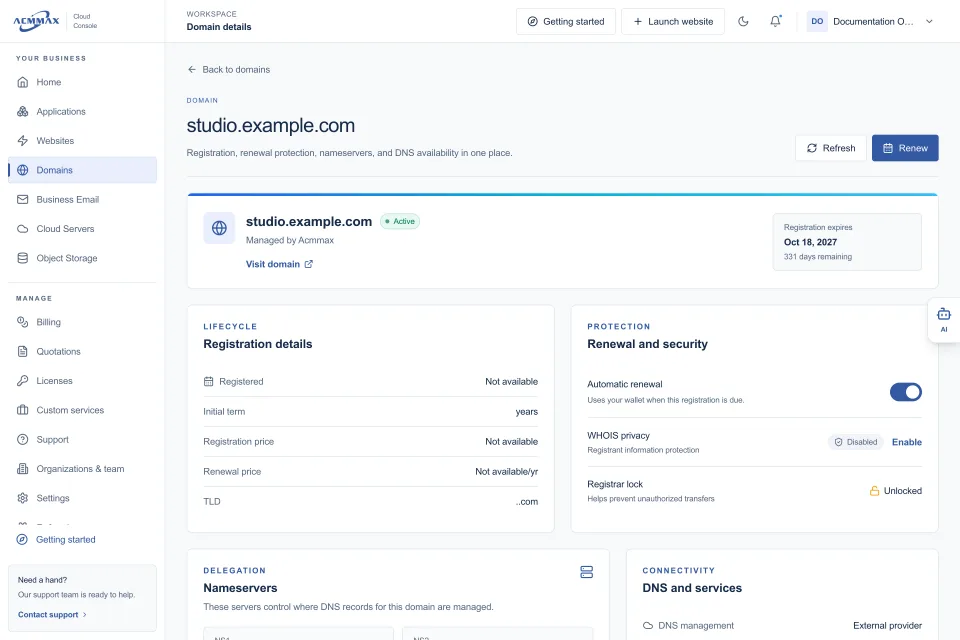
Check your domain and DNS records too. If an attacker accessed the domain account, they may have changed nameservers, added mail records, or redirected traffic elsewhere. Confirm that website, email, and verification records match your intended configuration.
Once the checks are complete, remove maintenance mode and monitor the site closely for several days. Watch for unexplained file changes, new administrator accounts, spikes in outgoing email, redirect reports, or warnings from visitors and search platforms.
Build a recovery process that is easier next time
The best post-incident improvement is operational, not just technical. Keep automated backups on a defined schedule, store copies separately from the website when practical, and test restoring them before an emergency. A backup that has never been tested is only an assumption.
Use a managed WordPress environment or a clear maintenance process to keep core software, themes, and plugins updated. Centralized controls can also make routine work simpler: manage backups, files, security settings, domain renewals, and account access from one place instead of relying on scattered credentials and disconnected dashboards.
Set a simple ownership policy for the site. Someone should be responsible for updates, someone should review administrator access, and someone should know where the current backup and recovery instructions live. For agencies, document this separately for every client site.
A clean recovery protects the website you have today. A tested backup routine, controlled access, and regular maintenance give your business a much better chance of staying online when the next issue appears.