


Teks penuh artikel ini dalam bahasa Inggeris.
A WordPress site can fall behind faster than most business owners expect. Core releases, plugin fixes, theme updates, and security patches arrive throughout the year, often when your team is focused on customers rather than maintenance. WordPress update automation helps reduce that workload, but it should not mean updating everything without review.
The right approach handles predictable, low-risk work automatically while preserving control over changes that could affect site design, checkout flows, forms, integrations, or custom code. For small businesses, agencies, and freelancers, that balance keeps maintenance practical without turning every update into an urgent task.
What WordPress update automation actually does
WordPress update automation allows the platform, hosting environment, or management tool to install selected updates without a person starting each one manually. Depending on your configuration, this may include WordPress core maintenance releases, plugins, themes, translation files, and security patches.
Automation is useful because delays create two common problems. First, known vulnerabilities can remain open longer than necessary. Second, a long list of pending updates makes it harder to identify which change caused an issue when something eventually breaks.
That said, updates are not all equal. A minor WordPress core release usually contains maintenance or security fixes and carries less risk than a major release that changes features or editor behavior. A plugin update may be simple, or it may alter a payment gateway, contact form, caching rule, or booking system your business relies on.
The goal is not maximum automation. The goal is a repeatable maintenance process that matches the importance and complexity of your site.
What to automate first
Most business websites can safely begin with a conservative automation policy. Enable automatic minor core updates and keep WordPress translation updates enabled. These changes are generally designed to address bugs, compatibility issues, and security concerns without introducing a large shift in functionality.
Plugin and theme updates need more judgment. If your website uses widely supported plugins with a clear update history and no heavy customization, automatic updates can be a sensible option. It is still wise to enable notifications so someone knows what changed and can check the site afterward.
For sites with a basic marketing setup, consider automating updates for:
- Security plugins, provided you receive update alerts
- Backup plugins, if the update does not change storage credentials or schedules
- Well-maintained utility plugins with limited impact on customer-facing functions
- Inactive themes that are kept only as WordPress fallback themes
Avoid automatically updating a plugin simply because it is popular. Its role on your site matters more than its download count. A form plugin connected to your sales process may deserve a review even if it has millions of users.
Updates that usually need a planned review
Major WordPress releases should usually be tested before they reach a production website. The same is true for themes controlling your site layout, ecommerce plugins, page builders, membership tools, multilingual plugins, and anything connected to payments, inventory, appointments, or customer data.
Custom-built sites require extra care. A developer may have added code that depends on a specific plugin behavior or theme structure. In that case, automatic updates can save time only when paired with testing and reliable rollback options.
Backups are the safety net, not an afterthought
Before enabling automated updates, confirm that your backups are current, stored separately from the live site when possible, and easy to restore. A backup is only useful if you can locate it and recover the site within an acceptable timeframe.
For a small brochure website, a daily backup may be enough. An ecommerce site or a site collecting frequent form submissions may need more frequent database backups because orders, leads, and account changes can occur throughout the day. Your backup schedule should reflect how much recent data the business can afford to lose.
It is also worth testing a restoration process before an incident. This does not need to be complicated. Restore a recent backup to a staging environment or another safe location, then confirm that pages load, media files are present, and critical functions work. A recovery plan that has never been tested is an assumption, not an operational process.
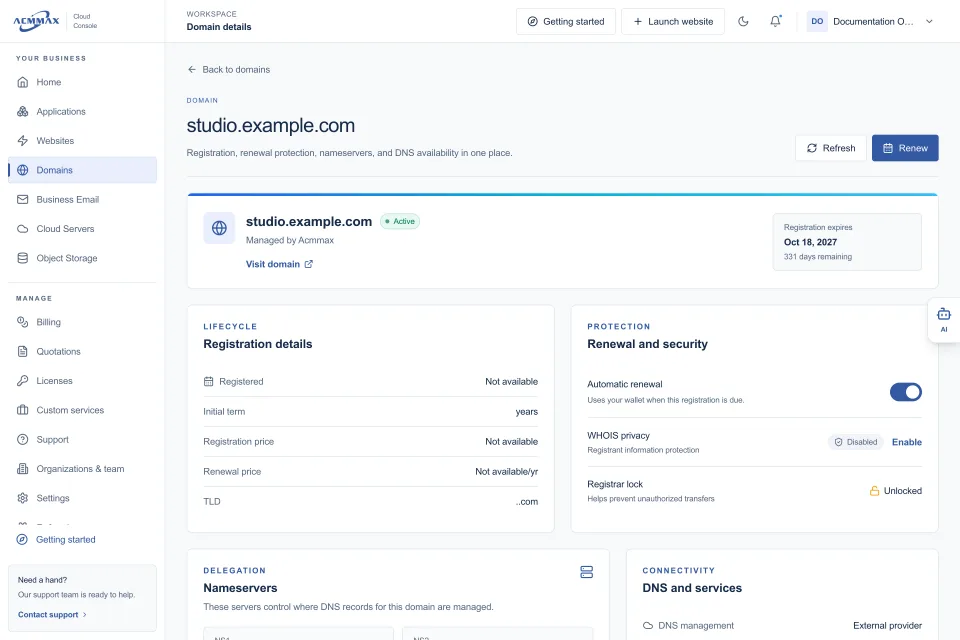
Managed WordPress hosting can simplify this work by putting site management, backups, security settings, and performance tools in one place. In a central console such as ACMMAX, this reduces the need to switch between separate hosting, backup, and billing dashboards when routine maintenance needs attention.
Use staging for business-critical websites
A staging site is a copy of your live website used for testing. It gives you a place to apply updates without affecting customers, search visitors, or staff members using the live site.
For agencies managing multiple client websites, staging turns updates into a controlled process rather than a late-night repair job. Update the staging copy, check priority pages and workflows, then apply the same change to the live site once you are satisfied.
You do not need to test every small update with the same level of effort. Match the checks to the risk. After a small plugin update, you may only need to confirm that the homepage, contact form, and admin area load normally. After updating WooCommerce, a page builder, or a payment extension, test the full customer journey: product page, cart, checkout, order confirmation, transaction emails, and account access.
A practical testing checklist should focus on the functions that make or save money for the business. If a site generates leads, test lead capture. If it sells products, test checkout. If it books appointments, test the booking path. Technical status messages matter, but real user actions matter more.
Monitor automated updates after they run
Automation without visibility creates a different kind of risk. Configure email or dashboard notifications for completed, failed, and unavailable updates. A failed update may leave a plugin inactive, create a maintenance screen, or signal a file-permission or compatibility issue that needs attention.
After automated updates, monitor the site for warning signs such as slow loading pages, broken layouts, PHP errors, unusual login activity, missing images, or a sudden drop in form submissions. For higher-value websites, use uptime monitoring so your team receives an alert if the site becomes unavailable.
Keep a lightweight record of significant updates as well. Agencies can include the date, site name, components updated, backup reference, and test result. A small log makes support requests faster and helps isolate problems when several changes occurred close together.
Build rules for plugins, not just a schedule
Many update problems start before the update itself. A site with too many overlapping plugins, abandoned extensions, or poorly documented customizations is harder to automate safely.
Review installed plugins every few months. Remove plugins and themes that are no longer needed, replace unsupported tools, and confirm that each active plugin serves a clear business purpose. Fewer moving parts usually mean fewer compatibility conflicts and a simpler maintenance routine.
When selecting new plugins, look beyond features. Check whether the developer actively maintains it, whether updates are released regularly, whether it supports your WordPress version, and whether the plugin has a clear support path. Free plugins can be appropriate, but a critical business function may justify a paid extension with dependable maintenance and support.
For teams responsible for several sites, group websites by risk level. A simple portfolio site can follow a more automated policy. A client site with ecommerce, memberships, or custom integrations should receive staged updates and a documented approval process. This prevents one policy from being applied to every website regardless of what is at stake.
A practical update policy for small teams
A useful policy can be short. Automate minor WordPress core updates and low-risk plugins. Schedule a weekly review of completed updates and failed notices. Test major releases and business-critical plugins on staging before production. Keep verified backups available before every planned change.
The schedule depends on your website. A low-traffic service site may need a monthly review plus automatic security maintenance. An active online store may need weekly update checks, daily backup verification, and testing whenever a critical plugin releases a new version.
Assign ownership, even if the owner is simply the business manager who receives alerts and knows when to contact a developer or hosting provider. Automation works best when someone remains accountable for the outcome.
Start with the updates you can confidently recover from, then expand automation as your backup, testing, and monitoring process becomes more reliable. That approach keeps WordPress maintenance manageable while protecting the website work your business depends on.